How to Convert Any Image to a Shareable URL in Seconds (Step-by-Step)

Sheenam Middha
Writer
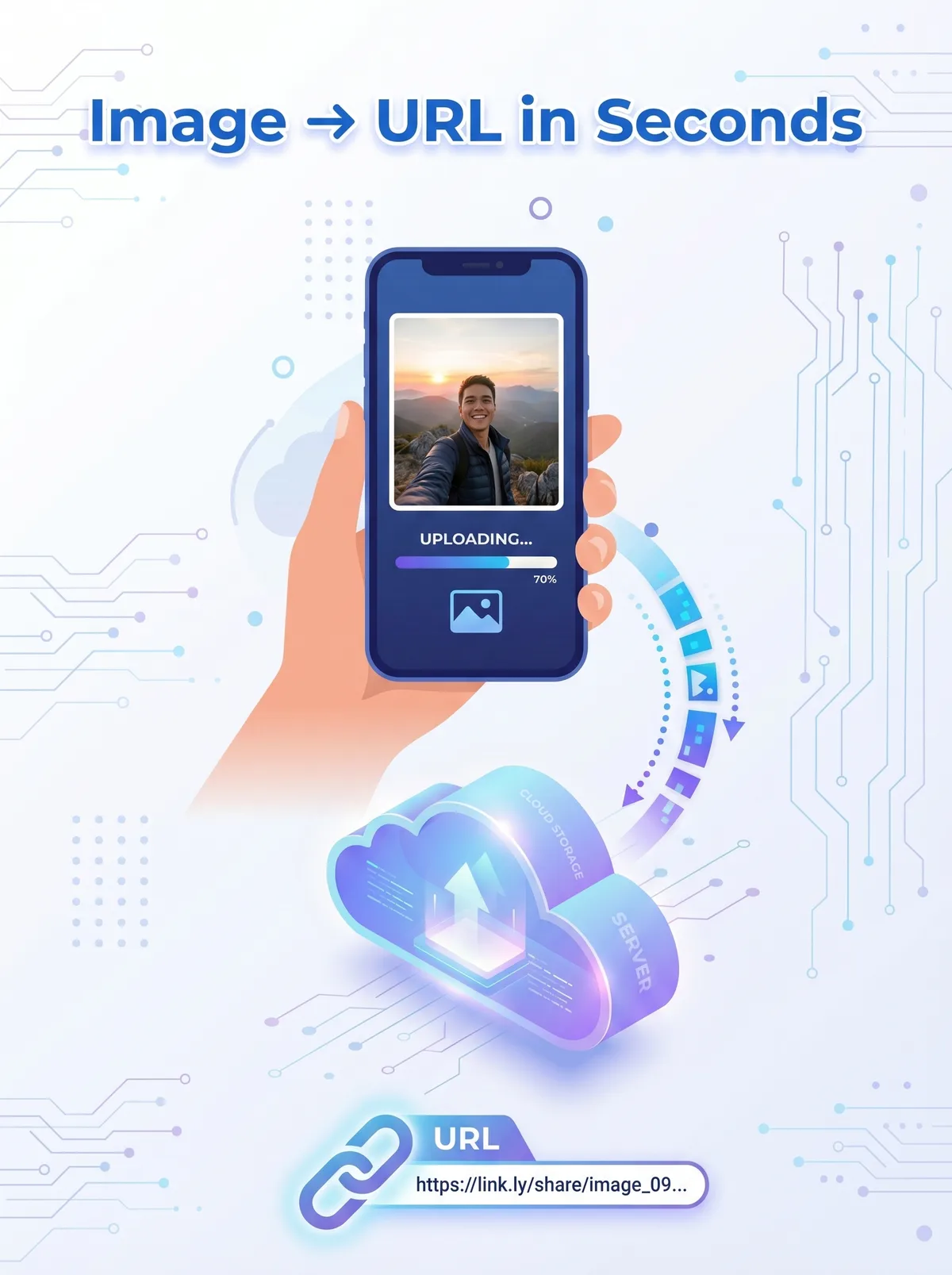
Table of contents
Got a photo on your device and want to share it quickly? Whether you're a developer, blogger, or just someone who needs a fast image link, converting an image to a URL is the easiest solution. No file attachments, no compression issues—just a simple link that works anywhere.
In this guide, you’ll learn how to turn any image into a shareable URL in seconds using ImageToURL.cloud—no technical skills required.
What Is an Image URL and Why Do You Need One?
An image URL is a direct link to an image online. Instead of sending the actual file, you share a link that opens the image in a browser.
Why People Use Image URLs
To add images to websites, blogs, or emails without uploading files every time
To share images on platforms that don’t support direct file uploads
To use images in APIs, chatbots, or automation workflows
To avoid sending large image files in messages or emails
You’ve probably used image URLs before without even realizing it. For example, when you embed an image in a forum or use a product image in an online store, you’re often using an image URL behind the scenes.
How Does an Image-to-URL Converter Work?
When you upload an image to a tool like ImageToURL.cloud, your file is stored on a secure server and a direct, permanent link is generated. This link is your image URL. Anyone with the link can view your image anytime, from any device.
What Happens Behind the Scenes
You upload your image (JPG, PNG, GIF, WebP, etc.)
The image is securely stored on a cloud server
A unique image URL is generated
You can copy and paste the link anywhere
The whole process takes just a few seconds, and ImageToURL.cloud doesn’t require any sign-up.
Step-by-Step: How to Convert an Image to a URL on Imagetourl.cloud
Follow these simple steps to get your image URL:
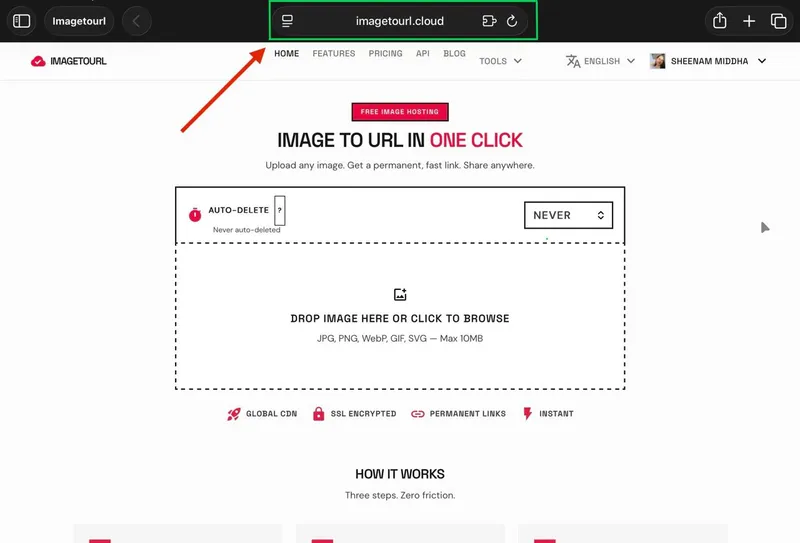
Step 1 — Open Imagetourl.cloud
Open in your browser Imagetourl.cloud. There is no registration required.
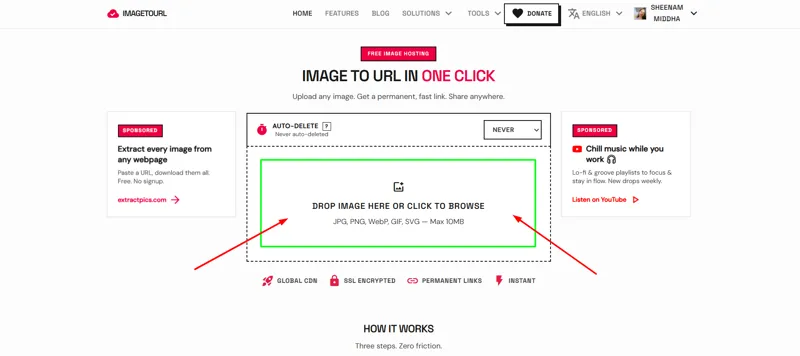
Step 2 — Upload Your Image
To upload an image, simply click the Upload button or drag and drop your file onto the page. It supports common formats like JPG, PNG, GIF, BMP, and WebP.
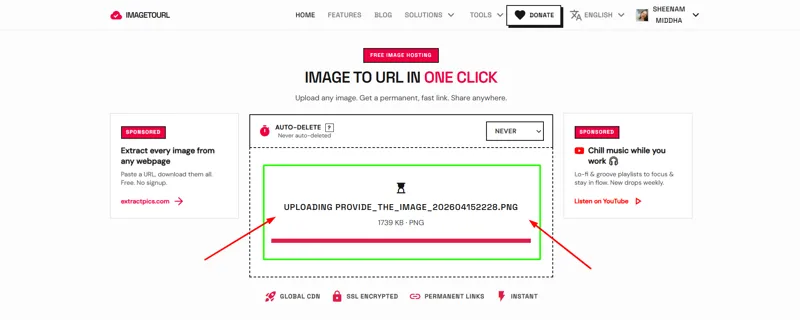
Step 3 — Wait for the Upload to Finish
It usually takes a few seconds to upload your image, depending on its size and your internet speed. After that, you’ll see a confirmation message or progress indicator.
Step 4 — Copy Your Image URL
After uploading, your image URL is generated instantly. Click “Copy” and you’re ready to share it anywhere.
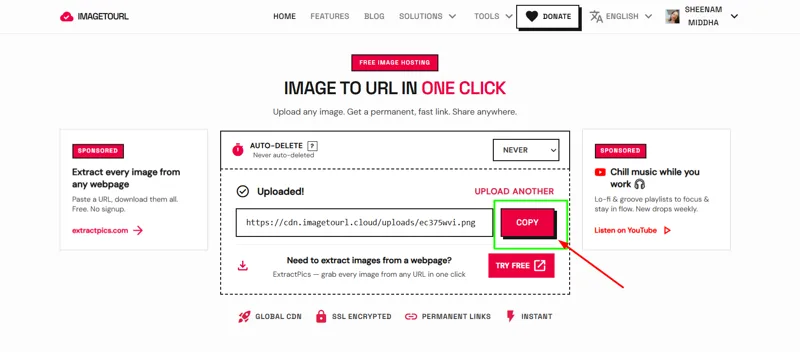
Step 5 — Use It Anywhere
Paste your image URL in:
A website or blog post (using
<img src="...">)Chat messages or emails
Tools like Google Docs or Notion, or presentations
Automation tools or API requests
What Image Formats Are Supported?
ImageToURL.cloud supports all major image formats, including:
JPG / JPEG — best for photos
PNG — ideal for images with transparency
GIF — used for animated images
WebP — modern format for faster loading and better compression
BMP — basic bitmap image format
If your image is in a less common format, it’s best to convert it to JPG or PNG using any free image converter before uploading.
Common Uses for Image URLs
For Website Owners and Bloggers
You can host your images on ImageToURL.cloud and use the direct URL in your HTML or WordPress editor, instead of uploading files every time. This helps you manage images more efficiently and speeds up your workflow.
For Developers and API Users
Image URLs are often required when working with APIs that accept links instead of file uploads—such as AI image recognition tools, social media APIs, and form builders.
For Marketers and Social Media Managers
Need to share a product image or banner with your team? Just send a URL instead of a large file. It’s faster, easier, and works across all platforms.
For Students and Educators
Sharing diagrams, charts, or images is much simpler with a direct link. It’s especially useful for presentations, online classes, and discussion forums.
Tips to Get the Best Results
Keep your image size under 5 MB for faster uploads and loading
Use PNG for logos or graphics that need a transparent background
Use JPG for photos to reduce file size
Avoid sharing sensitive images, as image URLs are public and accessible to anyone
Bookmark your image URL if you plan to use it again
Is It Safe to Convert Images to URLs?
Be careful what you upload. When you create an image URL, anyone with the link can see your image.
This is fine for things like product photos or blog images. But don’t upload personal photos, ID cards, or anything private.
Only share images you’re okay with making public.
Conclusion
Converting an image into a shareable URL is one of the quickest and most useful things you can do online—it takes less than a minute. With ImageToURL.cloud, the process is simple: upload, copy, and share.
Whether you're building a website, working with APIs, or just need a quick way to share an image, this tool makes it effortless. Try it out and skip the hassle of sending image files the traditional way.
Frequently Asked Questions
Is Imagetourl.cloud free to use?
Yes, Imagetourl.cloud is free with basic image-to-URL conversions. You are allowed to post a photo and receive a shareable URL without creating an account or paying.
How long does the image URL stay active?
On Imagetourl.cloud, your image URL stays active for a lifetime. You can use the link anywhere you want and will not face any issues.
Can I convert multiple images at once?
The tool enables you to post pictures individually. In the case of batch conversions, you may need to sign up.
Do I need to create an account to use the tool?
Imagetourl.cloud does not require an account. All you have to do is open the site, post your picture, and copy the generated link - that's easy.
Can I use the image URL in my website's HTML?
Absolutely. Copy the URL and use it as the src in an <img> tag. As an example: <img src="https://cdn.imagetourl.cloud/uploads/rce58y6y.png" alt="Convert Any Image to a Shareable URL" width="1200" height="630" />. And your image can be found on the page.
What if my image URL stops working?
In case a URL fails, then the image might have been deleted from the server, or it may have gone out of date. Repost the picture on Imagetourl.cloud and replace the old URL with the new one.