How Bloggers Can Speed Up Their Workflow Using Image-to-URL Tools

Sheenam Middha
Writer

Table of contents
Every blogger knows that sinking feeling: you've finished writing a post, and now you're stuck resizing images, uploading them to some hosting dashboard, and hunting for a direct link. It takes longer than it should. An image to URL tool for bloggers cuts that process down to a few seconds: upload your image, copy the link, and move on. That's exactly what imagetourl.cloud was built for. Here's a full guide to how it works and why it's worth adding to your daily workflow.
What Is an Image to URL Tool for Bloggers?
An image to URL tool allows you to upload an image (such as a screenshot, photograph, or graphic) and receive a link to it. No account required. No file manager to dig through. Just a link that you can share: on a blog, in an email, in a tweet, in a social caption, in a CMS such as WordPress.
It's like the difference between storing a document in a cabinet versus sharing a link to it in Google Docs. It's stored in a database; you simply provide the link.
Why the Direct Link Matters
There are several advantages to using a hosted URL to embed an image:
You don't have to store the file on your blog's server
The image is served from a lightning-quick CDN, not shared hosting
You can use the same image for different posts
Editors or others can see the image without downloading
That's a lot of time saved for bloggers.
Why ImageToURL.Cloud Is Built for Bloggers
There are lots of image hosting services. Most of them require you to register, impose storage caps, or even require paid plans before you can see if the tool's right for you.
But imagetourl.cloud does not. It is a free image hosting tool for bloggers. Here's what makes it different:
No Sign-Up Required
You visit the site, you upload your image, and you get a link. That's it. No verification, no welcome to the dashboard, no fill in your profile. This is a big deal for bloggers.
Supports All Common Image Formats
You can save images in JPG, PNG, GIF, WebP, and so on. It works for displaying product shots, explainers, banners, and more.
Fast CDN Delivery
Images hosted by imagetourl.cloud are delivered through a content delivery network (CDN). So, your readers in Mumbai, Manchester, or Minnesota all get the image from their local server - not the server that your blog is hosted on.
Readers don't want to wait for images. CDN hosting is an easy way to make sure your page load time isn't horrifically slow.
Clean, Permanent URLs
You will get a permanent direct link. It won't stop working after 30 days or if you clear your browser. You can set it and forget it.
How to Use ImageToURL.Cloud — Step by Step
It takes less than one minute to use the tool.
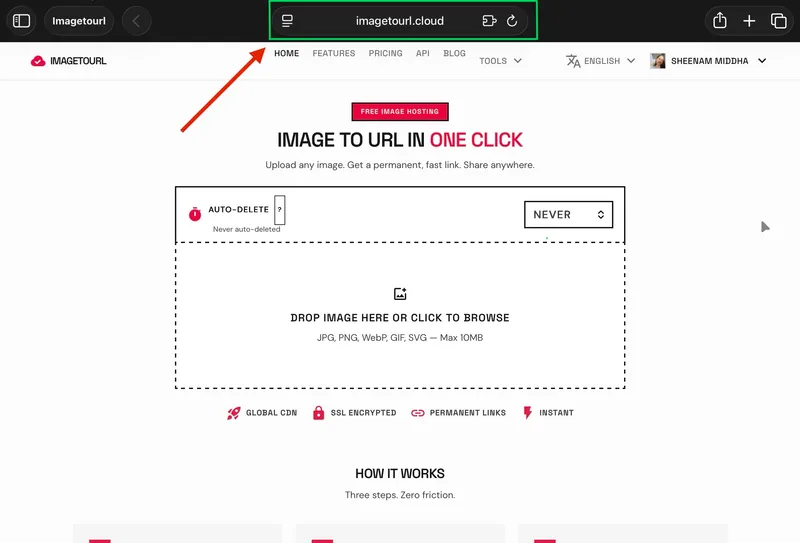
Step 1: Open imagetourl.cloud
Just visit it in your browser. No need to install or add an extension.
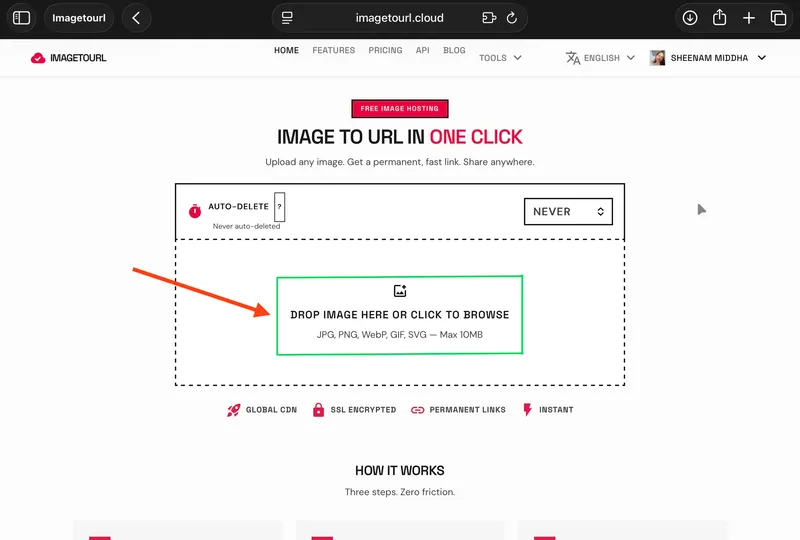
Step 2: Upload Your Image
Click on the upload box or drag and drop your image file into the box. Images up to the maximum file size will be accepted.
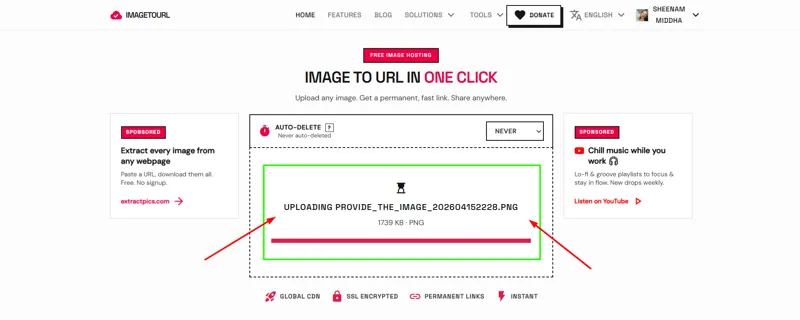
Step 3: Wait for the Upload to Complete
This will only take a few seconds. A progress bar will appear.
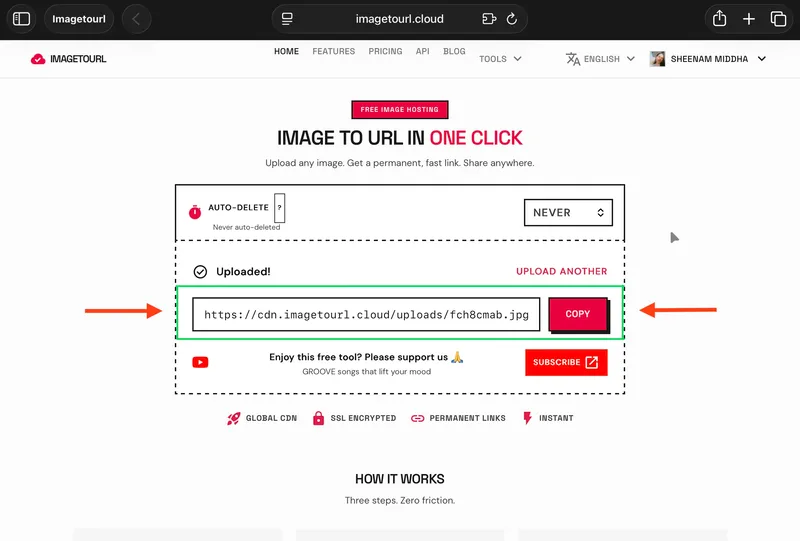
Step 4: Copy Your Direct Image URL
When you're done, you'll get a URL. Copy it. This is your image's permanent URL.
Step 5: Use it in Your Blog
Paste it into your blog's HTML editor, a Markdown file, a Google Doc, or wherever else you may be.
Use it like this in HTML:
<img src="https://cdn.imagetourl.cloud/uploads/0zbgflzz.jpg" alt="Description of your image" />
Or in Markdown:

Done. Your image is live.
How This Actually Changes Your Blogging Workflow
The true benefit of a free image server for bloggers is not what you add, but what you remove.
The old process for inserting images in WordPress is: open WordPress media library → upload file → wait → find the image → copy the URL → go back to your editor → paste. Or worse, sending images via email to your editor, with confusion over which draft is the latest.
After? You upload, copy the link, and send it to them. Your editor sees what you see. Your post editor has the URL ready to go. No "did you get my attachment?" emails.
Use Cases Where This Helps the Most
Guest post submission: If you're pitching a guest post that involves images, you can't attach a 4 MB file to every editor. A URL will fix that problem.
Social media scheduling: Some social media apps require URLs instead of uploaded files. It's faster to have a URL.
Email newsletters: Email newsletter software often imports images via a URL. When your images are hosted, it makes newsletter creation much quicker.
Collaborative editing: Give auto-contributors or VAs the link to images. They can preview the image you're using without accessing your media library.
Image to URL Conversion and Blog SEO
Hosting images externally doesn't affect the SEO of your blog if you do a couple of things:
1. Always Use Alt Text
When you insert an image via a URL, make sure to include alt text. It's read by Google and by screen readers. Something like alt="step-by-step guide to uploading images for blog posts" will tell Google what the image is without you having to include keywords in the file name.
2. Keep Image File Sizes Reasonable Before Uploading
Compress your images. Squoosh and TinyPNG reduce the file size by half with no loss in quality. Faster loading times, even with CDN.
3. Match Images to Post Content
Google evaluates images in context - the content around them, the title of the page, and the alt text. Make sure the image is relevant to the topic, and that it's close to where it's being discussed.
A blog image URL generator such as imagetourl.cloud will assist you to acquire an image on the internet quickly, but the search engine's worth of it will remain in how you incorporate it on your site.
Conclusion
When you take the time each week to upload pictures, search through media libraries, and send file attachments back and forth, an image-to-URL tool for bloggers can eliminate the majority of that hassle. Imagetourl.cloud will give you a permanent, CDN-hosted image link within seconds - no account, no mess. To bloggers who post frequently, such a minor time savings can be added up to hours saved each month.
Frequently Asked Questions
How to convert an image into a URL link?
It is simple to convert an image to URL online on imagetourl.cloud, upload your image, and use the resulting link. The entire cycle is less than 10 seconds.
How to get a picture to have a URL?
You can upload your picture to a picture hosting site such as imagetourl.cloud, and it immediately gives your picture a permanent direct link. No account needed.
How to create your own image URL?
Go to imagetourl.cloud, drop your picture, and your image URL is created automatically. You may paste it on any platform, blogs, emails, or social media.
Is it safe to use image URL generators?
Yes, such trusted tools as imagetourl.cloud are safe to use, and do not require any personal information. All you need to do is not to post personal or confidential photos, as hosted URLs are publicly viewable.
What tools can convert an image to a clickable link?
One of the quickest free tools that allows the conversion of any image into a shareable link with a simple click, without registration, is imagetourl.cloud. Alternatives such as Imgbb and Postimages are available though the majority of these websites require an account.
How to convert a PNG image to a URL link?
Drag and drop your PNG file on imagetourl.cloud - it accepts PNG, JPG, WebP, and GIF. Instantly, you have a direct URL to which you can embed as a clickable image.