Best Practices for Sharing Images Online Without Losing Quality

Sheenam Middha
Writer
Table of contents
Sharing photos online is easy, but many people lose image quality without even realizing it. Platforms like WhatsApp, Facebook, and email services often compress your images to save data. The result? Blurry photos, dull colors, and loss of detail.
Whether you're a photographer, blogger, seller, or marketer, keeping your image quality intact is important. In this guide, you’ll learn simple best practices to share images online without losing quality—so your photos always look sharp and clear.
Why Do Images Lose Quality When Shared Online?
Before jumping to solutions, it’s important to understand the problem. Image quality usually drops because of compression.
When you upload a photo to social media, messaging apps, or even some cloud services, the platform automatically reduces the file size. This helps save data, but it also removes some details—making the image look blurry or less sharp.
Common Causes of Quality Loss
Your images may lose quality after you upload or share them—and there are a few common reasons for this.
Email attachments often reduce image size to meet file limits. Social media platforms like Instagram and Facebook apply strong compression to uploaded images. Messaging apps such as WhatsApp can significantly lower image quality. Even some cloud storage services compress images when generating preview links.
With each step, your image can lose a bit of detail, making it look less sharp over time.
How to Share Images Online Without Losing Quality
The good news? You can easily avoid image quality loss with the right methods. Here are a few simple tips to keep your photos looking their best.
1. Use a Dedicated Image Hosting Service
The best way to share images without losing quality is to use a dedicated image hosting service. Unlike social media or email, a good image host stores your original file without compression.
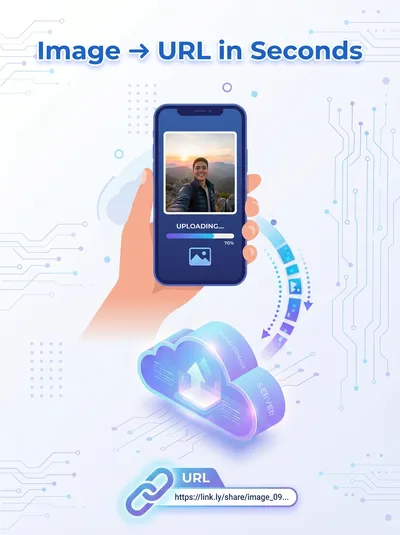
ImageToURL.cloud is built for this purpose. You can upload your image and instantly get a direct URL to share anywhere. Your photo stays in its original quality—no compression, no resizing, and no sign-up required.
2. Choose the Right Image Format
The format you choose affects image quality. Here’s a simple breakdown:
PNG — Best for graphics, screenshots, and text (no quality loss)
JPG — Best for photos with smaller file size
WebP — Modern format with good quality and smaller size
AVIF — Advanced format with high compression, but limited support
If you’re unsure, go with PNG for best quality. ImageToURL.cloud supports PNG, JPG, GIF, and WebP, so you can choose what works best.
3. Avoid Sharing Through Messaging Apps
Apps like WhatsApp, Telegram, and Facebook Messenger compress images heavily. A high-quality photo can lose a lot of detail after being shared.
Instead, upload your image to ImageToURL.cloud and share the link. This keeps the original quality intact.
4. Use Direct Image Links Instead of Attachments
Email attachments often reduce image quality or have size limits. A better option is to share a direct image link.
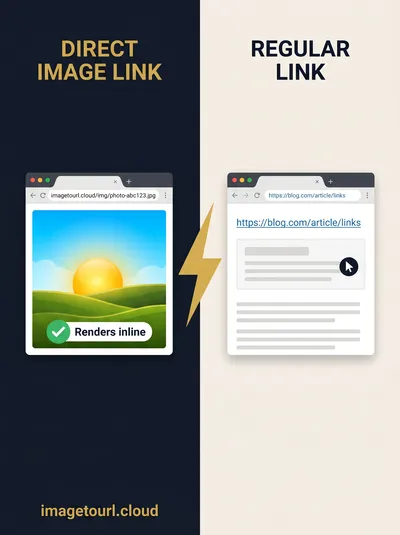
ImageToURL.cloud gives you a clean URL (ending in .jpg, .png, etc.) that you can use in emails, blogs, documents, or forums—without any quality loss.
5. Upload in Bulk When Needed
If you need to share multiple images, uploading them one by one can be slow. ImageToURL.cloud lets you upload images in bulk and generates a separate link for each one.
This makes it easy to share a full set of images without compression or extra effort.
Step-by-Step: How to Share Images Using ImageToURL
Want to share your photos without losing quality? Just follow these simple steps:
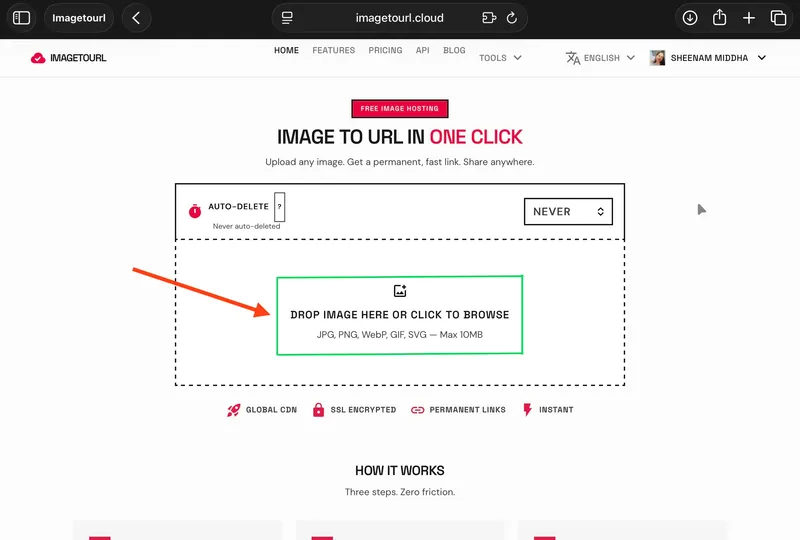
1. Go to the ImageToURL.cloud website.
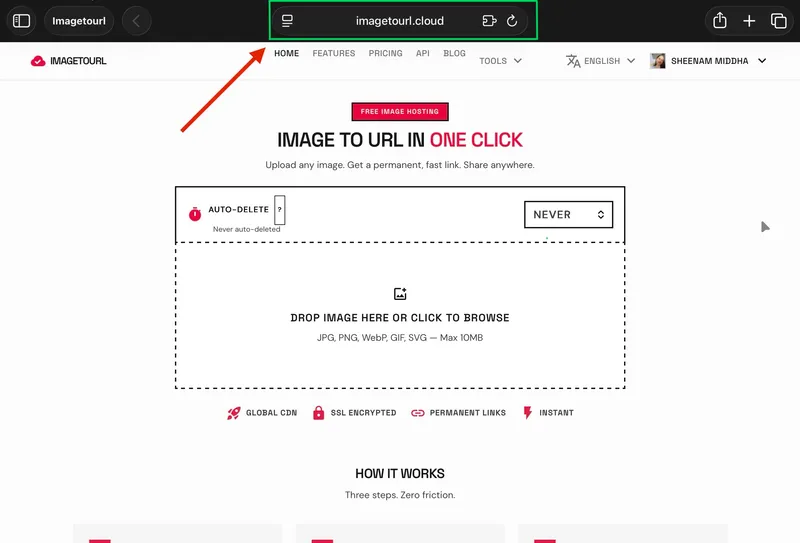
2. Drag and drop or click on the upload button to upload your image. No registration is required.
3. Copy the URL generated after the upload has been done.
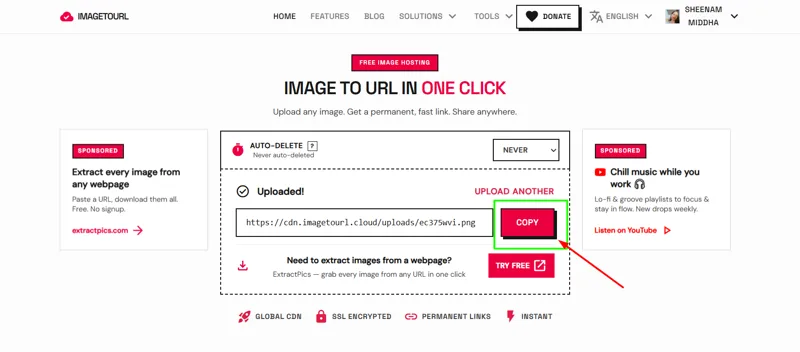
4. Use the URL anywhere — in emails, blogs, social media, forums, or chat programs.
5. Embed code allows you to embed the image on a web page or HTML email.
It only takes that. Your photo remains in its original quality and resolution.
Best Practices for Optimizing Images Before Sharing
You can share images without losing quality, but optimization still matters. Well-optimized images load faster and look better on all devices.
Resize to the Right Dimensions
There’s no need to upload a 6000×4000 image if it will only be viewed on a phone. Resize your image to match how it will be displayed. ImageToURL.cloud also offers a built-in resizer to help you adjust image size before uploading.
Compress Without Losing Visible Quality
Smart compression reduces file size without noticeably affecting quality. ImageToURL.cloud includes an image compressor that balances file size and clarity—perfect for websites where fast loading is important.
Remove Unnecessary Metadata
Photos often contain extra data (EXIF), such as location, device info, and timestamps. This increases file size and may raise privacy concerns. Removing this data keeps your images lightweight and protects your information.
Where Can You Use Hosted Image Links?
Once you have a direct image link, you can use it almost anywhere, such as:
Product pages on eBay or Shopify
README files on GitHub
Communities like Discord
Documents and pages on Notion
Blog posts on WordPress
Email newsletters and forum posts
ImageToURL.cloud also provides an embed code generator for easy HTML integration and an upload API for developers.
Conclusion
Image quality often drops during sharing, but it’s easy to avoid with the right approach. By using a dedicated hosting tool like ImageToURL.cloud, choosing the right format, and avoiding heavy compression platforms, you can keep your images clear and sharp.
Try it yourself—upload your first image to ImageToURL.cloud and see the difference.
Frequently Asked Questions
Why do my images look blurry after sharing them online?
Most of the apps, such as WhatsApp, Facebook, and email applications, automatically reduce file size by compressing images. This compression eliminates information in your photo and leaves you with blurry or pixelated images. To prevent this, it is best to use a special image hosting site such as ImageToURL that will retain the original image quality.
What is the best image format for sharing without quality loss?
PNG is the most suitable format to share losslessly since it lacks the ability to cut off any data of an image when compressing. JPG at 80% quality or more is a good option in case of photos whose file size is an issue. WebP is a compromise between small size and good quality on the Web.
Does ImageToURL compress my images when I upload them?
No. ImageToURL uses the original quality of your images without compression or resizing. The direct link you are provided with is the direct link to that file you uploaded; thus, what you share is what you uploaded.
Can I share multiple images at once without losing quality?
Yes. ImageToURL has a bulk image uploading system that allows you to put up a number of images at a given time. The images have direct links, and therefore, you can distribute a collection of quality images fast and conveniently.
Is it safe to share images through ImageToURL?
ImageToURL also allows anonymous uploads, and thus, there is no need to create a personal account or sign up. To increase privacy, you can remove EXIF metadata (with GPS position and device information) before posting your photos.
Where can I use the image links generated by ImageToURL?
The direct image links can be used practically anywhere: in emails, blog posts, eBay listings, GitHub READMEs, Discord servers, Notion pages, WordPress websites, Shopify, forums, and so on. ImageToURL also offers embed codes as well as an upload API to developers.